How to add a copy button to code blocks
Add a small Copy button to every code block on your page that copies the code, says Copied for a moment, and tells screen reader users what happened.
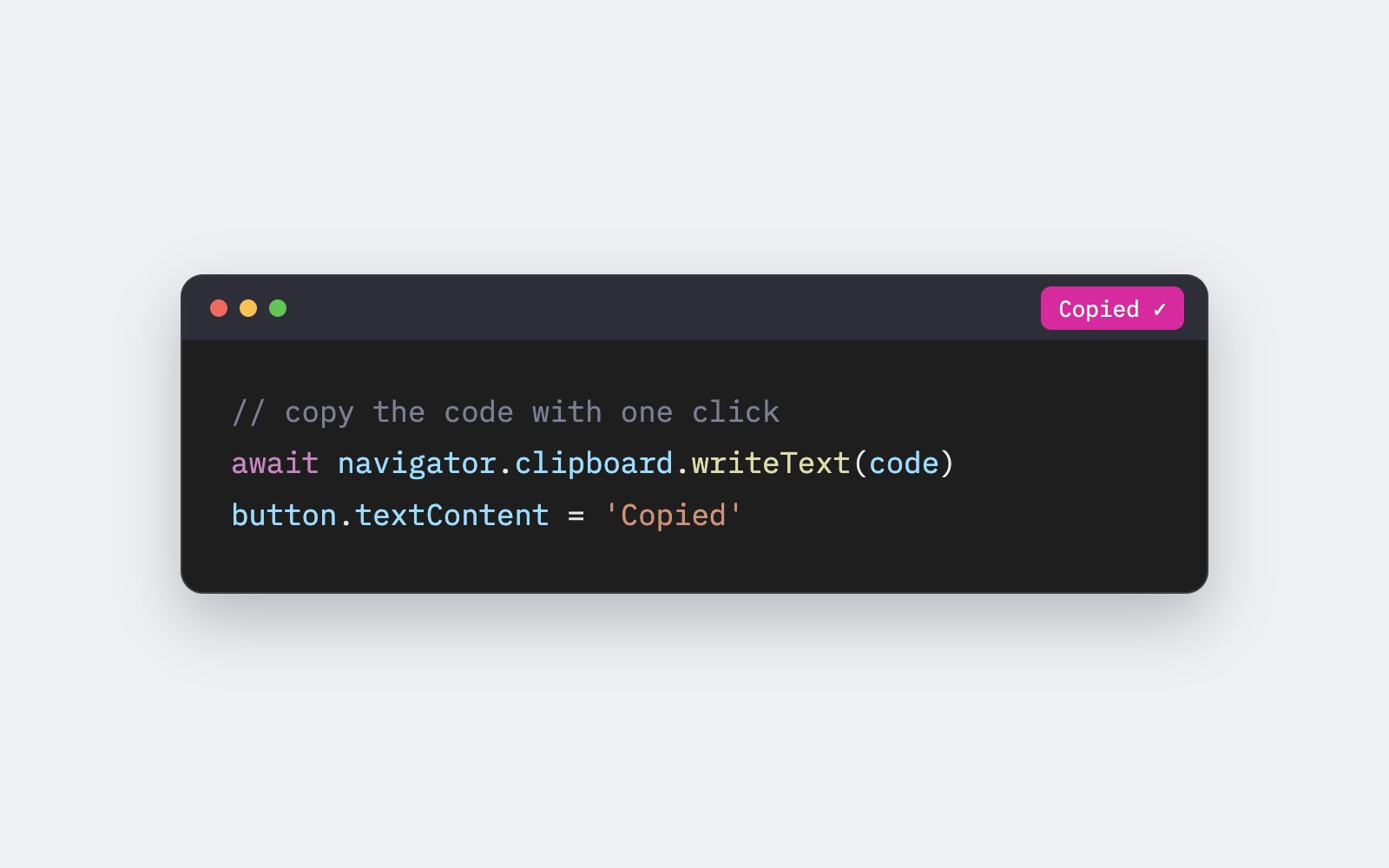
You know that little Copy button in the corner of every code box on this blog? In this tutorial you'll build the same thing: a header bar on top of a code block, with a button that copies the code, switches to Copied for a moment, and then goes back to Copy. You'll also make it friendly for keyboard and screen reader users, give it a backup plan for when the clipboard says no, and wire up every code block on a page with one small script.
Start with the markup
Each code block is a wrapper with two parts: a small bar on top with a label and a button, and a pre with a code inside it underneath. The pre keeps your spaces and line breaks exactly as you typed them.
Use a real button element with type="button". You get keyboard focus, Enter and Space support, and the right role for screen readers for free. Add one visually hidden status line anywhere on the page too. We'll use it later to announce the copy.
Notice the angle brackets inside the code are written as < and >. That way the browser shows the tag as text instead of trying to render it.
<div class="code-box">
<div class="code-bar">
<span class="code-label">HTML</span>
<button type="button" class="copy-btn">Copy</button>
</div>
<pre><code><p class="hello">Hi there!</p></code></pre>
</div>
<!-- One shared status line for screen readers, anywhere on the page -->
<p id="copy-status" class="visually-hidden" aria-live="polite"></p>Style the bar and the button
This gives you a dark editor look: a slightly lighter bar on top, a soft grey button, and a code area that scrolls sideways when a line is long, instead of breaking your layout.
Two small details matter here. The button has a min-width, so it doesn't jump in size when Copy turns into Copied. And it has a clear focus-visible outline, so keyboard users can see where they are. The hover fade is switched off for anyone who has asked their system for reduced motion.
.code-box {
  margin: 22px 0;
  border: 1px solid #1e1e1e;
  border-radius: 12px;
  overflow: hidden;
  background: #1e1e1e;
}

.code-bar {
  display: flex;
  align-items: center;
  justify-content: space-between;
  height: 40px;
  padding: 0 8px 0 14px;
  background: #252526;
  border-bottom: 1px solid #333333;
  color: #cccccc;
  font-family: ui-monospace, Menlo, Consolas, monospace;
  font-size: 12px;
}

.copy-btn {
  font: inherit;
  min-width: 64px; /* "Copy" and "Copied" take up the same space */
  height: 28px;
  padding: 0 10px;
  border: 1px solid #4a4a4a;
  border-radius: 6px;
  background: #3c3c3c;
  color: #cccccc;
  cursor: pointer;
  transition: background-color 0.15s ease;
}

.copy-btn:hover {
  background: #4a4a4a;
}

.copy-btn:focus-visible {
  outline: 2px solid #9cdcfe;
  outline-offset: 2px;
}

.code-box pre {
  margin: 0;
  padding: 16px;
  overflow-x: auto;
  color: #d4d4d4;
  font-family: ui-monospace, Menlo, Consolas, monospace;
  font-size: 13px;
  line-height: 1.6;
}

.visually-hidden {
  position: absolute;
  width: 1px;
  height: 1px;
  margin: -1px;
  padding: 0;
  overflow: hidden;
  clip: rect(0 0 0 0);
  white-space: nowrap;
  border: 0;
}

@media (prefers-reduced-motion: reduce) {
  .copy-btn {
    transition: none;
  }
}
Copy the text with the Clipboard API
The modern way to copy is navigator.clipboard.writeText(). You pass it a string and it returns a promise, so you can await it and know for sure whether the copy worked.
It has a couple of rules. It only works in a secure context, which means your page has to be on HTTPS (localhost counts too, so it works while you build). And the browser expects it to happen because the user did something, like clicking. Calling it from a click handler checks both boxes.
This API works in all current major browsers. MDN has a good page on it if you want the full details.
const button = document.querySelector('.copy-btn');
const code = button.closest('.code-box').querySelector('code');

button.addEventListener('click', async () => {
  try {
    await navigator.clipboard.writeText(code.textContent);
    console.log('Copied!');
  } catch (error) {
    console.log('Copy failed:', error);
  }
});
Show Copied, then switch back
A copy happens silently, so the button needs to tell people it worked. After the promise resolves, change the text to Copied and use setTimeout to change it back about 1.6 seconds later.
Watch out for double clicks. If someone clicks twice, you'd start two timers, and the first one would flip the button back to Copy too early. The fix is to save the timer and call clearTimeout before starting a new one. Now every click simply restarts the countdown.
const button = document.querySelector('.copy-btn');
const code = button.closest('.code-box').querySelector('code');
let resetTimer;

function showCopied() {
  button.textContent = 'Copied';
  clearTimeout(resetTimer); // a second click restarts the timer
  resetTimer = setTimeout(() => {
    button.textContent = 'Copy';
  }, 1600);
}

button.addEventListener('click', async () => {
  try {
    await navigator.clipboard.writeText(code.textContent);
    showCopied();
  } catch (error) {
    button.textContent = 'Copy';
  }
});
Tell screen readers it worked
Changing the button text is great for sighted users, but a screen reader might not read it out after the click. That's what the hidden status line with aria-live="polite" is for. When its text changes, screen readers announce it once they finish what they're saying.
Clear the text first, then set it after a short pause. If you set the exact same message twice in a row, some screen readers treat it as no change and stay quiet.
const status = document.getElementById('copy-status');

function announce(message) {
  status.textContent = '';
  // A tiny pause makes screen readers treat it as new text,
  // even when it's the same message twice in a row.
  setTimeout(() => {
    status.textContent = message;
  }, 50);
}

// Later, after a copy works:
// announce('Code copied to clipboard');
Add a fallback and wire up every block
Sometimes the Clipboard API isn't there (an old browser, or a page on plain HTTP) or it gets blocked. As a backup, select the code on the page and try document.execCommand('copy'). It's marked as deprecated, so treat it as a legacy safety net, not your main plan. If even that fails, the code stays selected, and the reader can press Ctrl+C or Cmd+C themselves.
To handle many code blocks with one script, listen for clicks on the whole document and use closest('.copy-btn') to find which button was pressed. From there, closest('.code-box') finds its own code. A WeakMap keeps one timer per button, so blocks never mess with each other's text. This also works for code blocks you add to the page later.
Here's the full script. Put it at the end of your page or in a file loaded with defer, and every code box gets a working Copy button.
const status = document.getElementById('copy-status');
const resetTimers = new WeakMap();

function announce(message) {
  status.textContent = '';
  setTimeout(() => {
    status.textContent = message;
  }, 50);
}

function fallbackCopy(codeEl) {
  const range = document.createRange();
  range.selectNodeContents(codeEl);
  const selection = window.getSelection();
  selection.removeAllRanges();
  selection.addRange(range);

  let copied = false;
  try {
    copied = document.execCommand('copy');
  } catch (error) {
    copied = false;
  }
  if (copied) {
    selection.removeAllRanges();
  }
  return copied;
}

function showCopied(button) {
  button.textContent = 'Copied';
  clearTimeout(resetTimers.get(button));
  resetTimers.set(button, setTimeout(() => {
    button.textContent = 'Copy';
  }, 1600));
}

document.addEventListener('click', async (event) => {
  const button = event.target.closest('.copy-btn');
  if (!button) return;

  const codeEl = button.closest('.code-box').querySelector('code');
  let copied = false;

  if (navigator.clipboard && window.isSecureContext) {
    try {
      await navigator.clipboard.writeText(codeEl.textContent);
      copied = true;
    } catch (error) {
      copied = fallbackCopy(codeEl);
    }
  } else {
    copied = fallbackCopy(codeEl);
  }

  if (copied) {
    showCopied(button);
    announce('Code copied to clipboard');
  } else {
    announce('Copy did not work. The code is selected, press Control or Command plus C to copy it.');
  }
});
One last tip: always copy with textContent, not innerHTML. Your code block stores a tag as <p> so the browser shows it as text, and textContent hands the reader a clean <p> they can paste straight into their editor.
More articles
How to make a headline type itself out
Build a headline that types itself out letter by letter with a blinking cursor, using plain HTML, CSS and a few lines of JavaScript.
How to make a confetti burst on click
A no-library tutorial for a small burst of colorful confetti that pops out from the exact spot where someone clicks a link or button.
How to add a reading progress bar
Build a thin pink bar that fills across the top of the screen as someone reads your article, with a small JavaScript version and a pure CSS version for browsers that support scroll-driven animations.
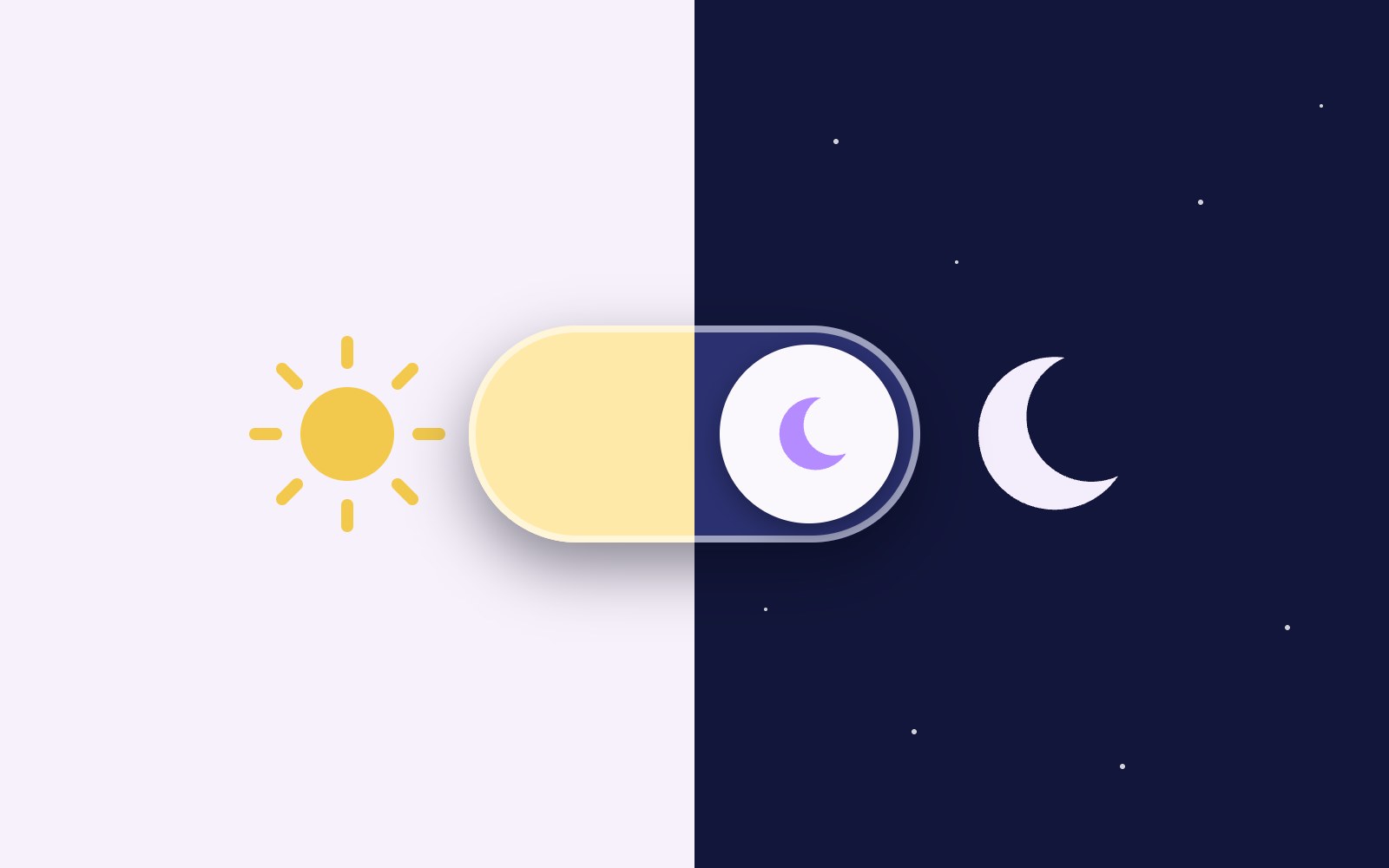
How to build a dark mode toggle
A step-by-step tutorial for a dark mode that follows your visitor's device setting, adds a toggle button that saves their pick in localStorage, and never flashes the wrong theme on load.
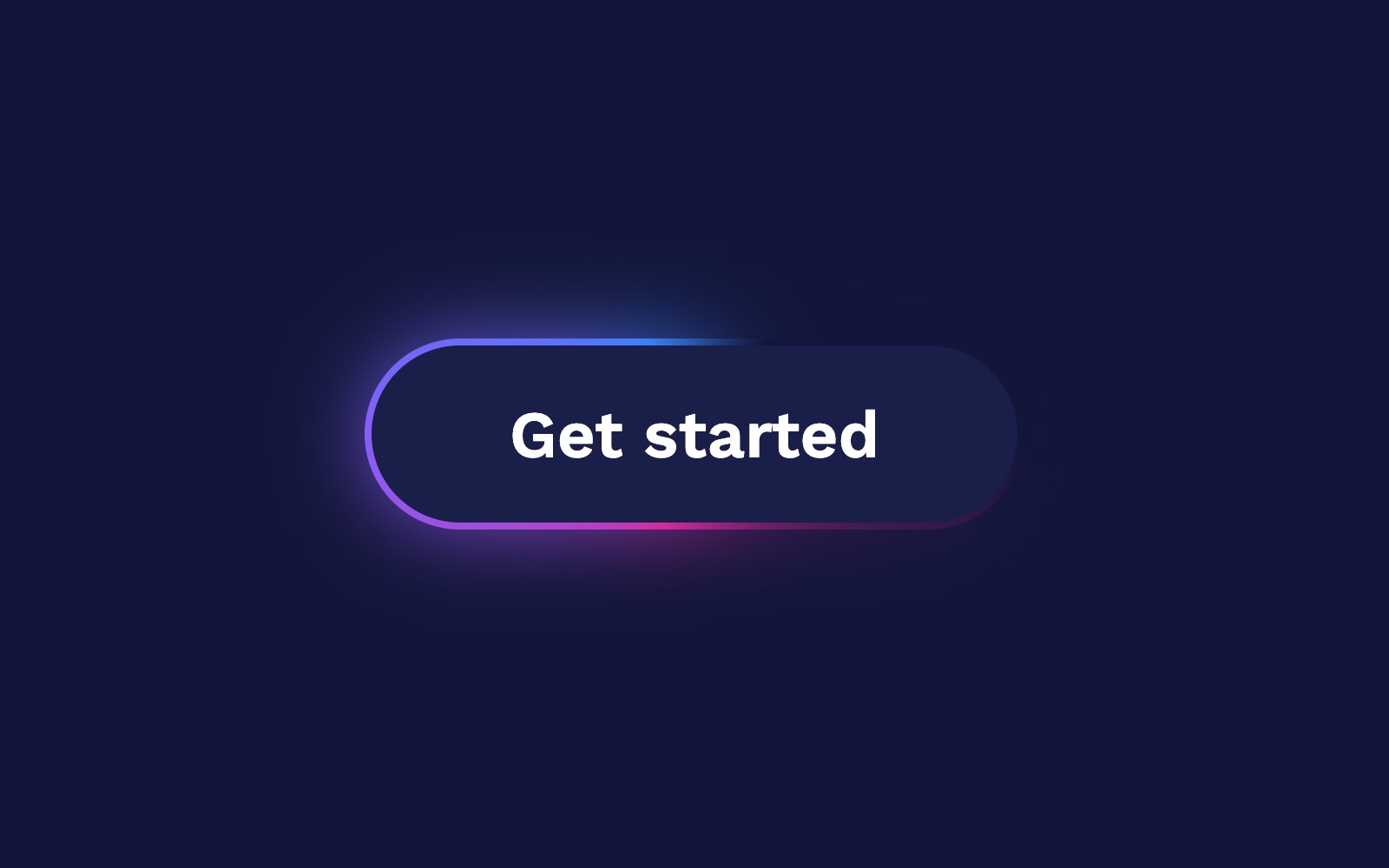
How to make a glowing border spin
A pure CSS tutorial for a card with a pink, purple and blue gradient border that spins around the edge and glows softly, with a calm static version for people who prefer less motion.
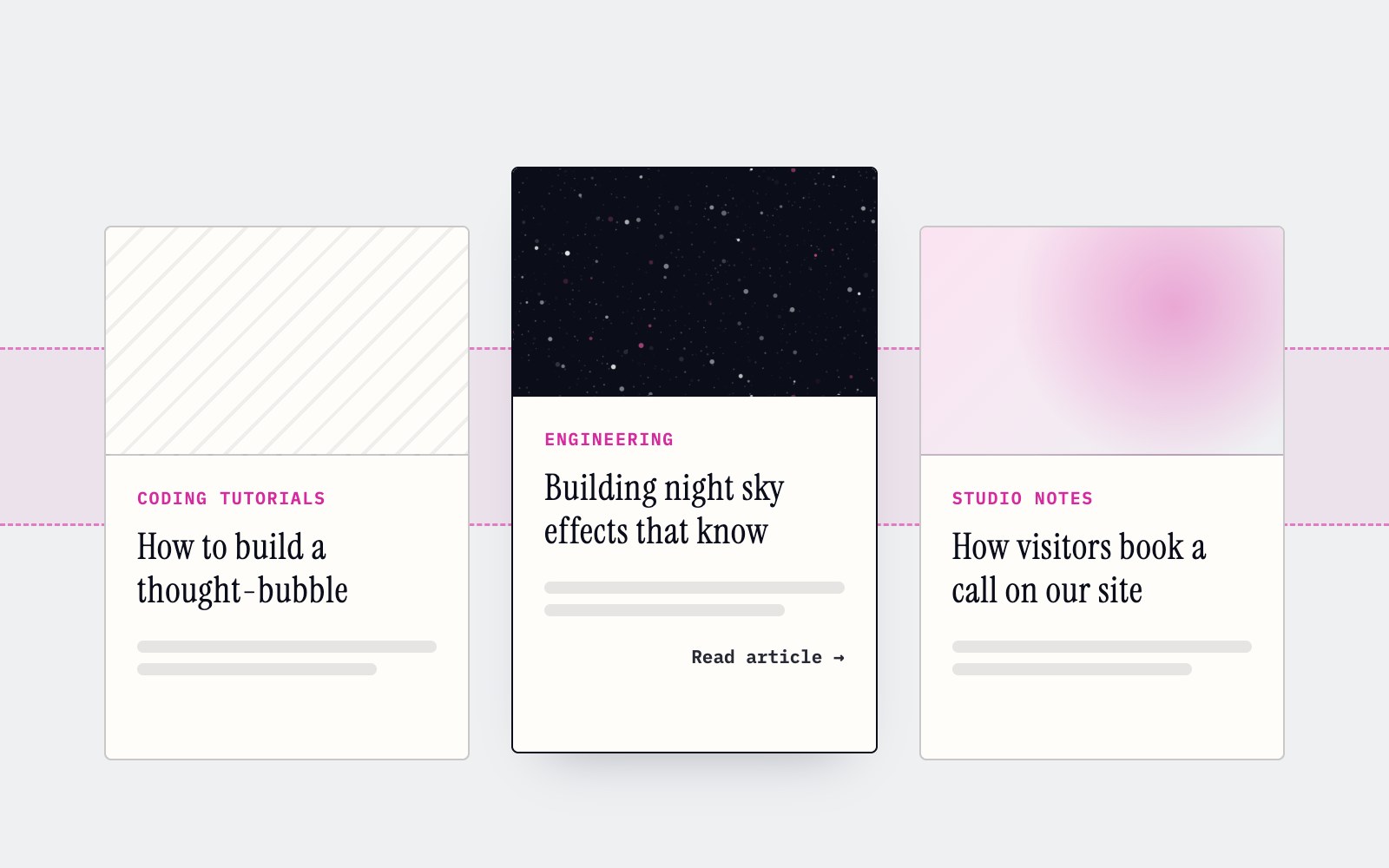
How to make cards lift as you scroll on a phone
Phones can't hover, so our blog cards used to sit flat on mobile. Here's the small CSS class and IntersectionObserver we use to lift whichever card is in the middle of the screen as you scroll.
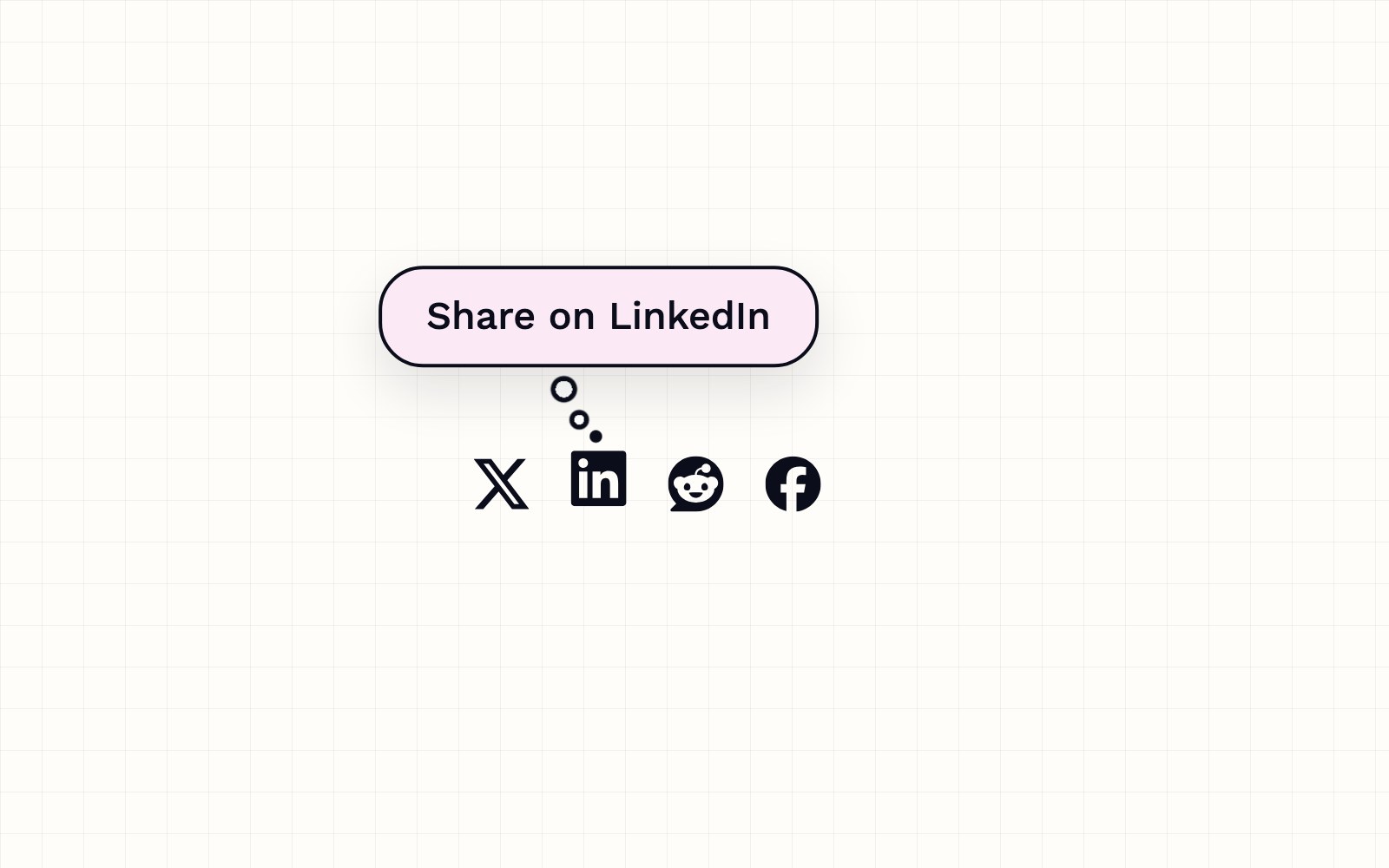
How to build a thought-bubble tooltip with pure CSS
A step-by-step CSS tutorial for a tooltip that reads its label from a data attribute, pops up in a rounded bubble, trails off in three little circles and stays clickable, with no JavaScript.
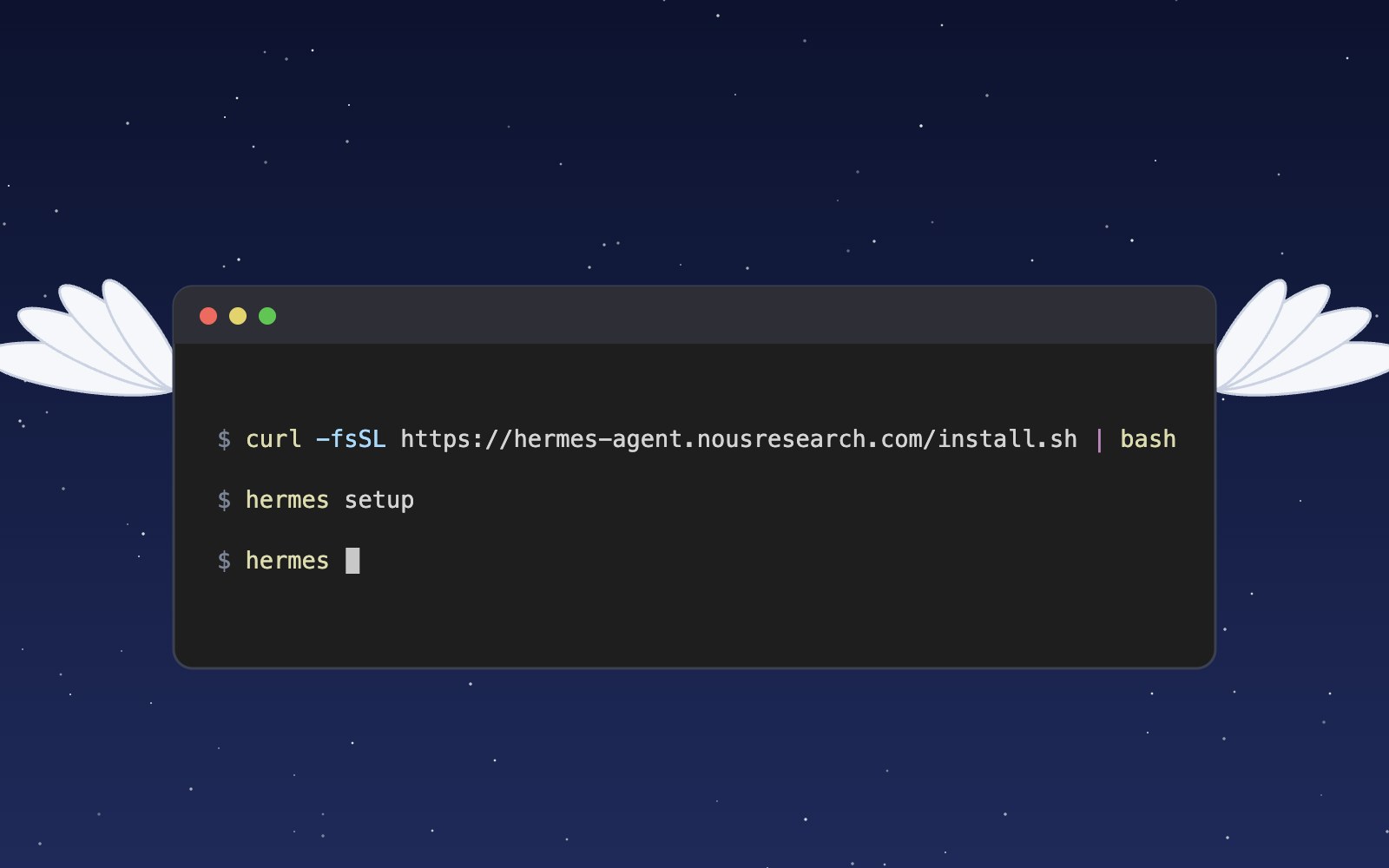
What is Hermes?
Hermes is an open source AI agent harness from Nous Research that runs on your own computer, uses tools, remembers past sessions and learns skills. Here is what it does and how to install and set it up.
Meet the Night Sky UI Kit
Three animated React components for dark, night-sky themed sites: a star cursor, a twinkling starfield and a soft aurora glow. Here is what's inside and how to add it.
Behind the Star Cursor
How the Star Cursor draws its comet tail and sparkle dust, and why it quietly steps aside on touch screens and for anyone who prefers reduced motion.
The moon is, in fact, an inanimate, dusty old rock
The moon is a layered ball of rock about 4.5 billion years old, wrapped in sharp gray dust and almost no air. Here is what it is made of, where it probably came from and why it barely changes.
How solar storms mess with satellites
The sun has weather, and some of it reaches us. Here is how solar flares and the storms that follow can sink satellites, scramble GPS and even trip power grids, and how people keep watch.
Patterns in sound
Sprinkle salt on a drum, play a steady note, and the grains slide into neat lines and rings. Here is why sound draws pictures, who first noticed, how to try it at home, and what all this has in common with a snowflake.
Most of the sound around you goes unheard
Human ears catch only a middle band of all the sound there is. Here is what we miss, which animals hear it, and why the hums and whines from our own gadgets can still get under our skin.
What is LaserSETI?
LaserSETI is a growing network of rooftop cameras that watch huge patches of the night sky for a single-color flash of light. Here is how it works, where the stations are in 2026, and what it has (and has not) found.
Most of the light around you is invisible
Our eyes catch only a thin band of all the light there is, from violet to red. Here is what we miss, which animals see more of it, and how we use the invisible rest every day.

The science of music
Why a good chorus gives you chills, why the Mozart effect fizzled, and why some songs refuse to leave your head. Here is what the research actually says about music, mood and focus.
Bill Nye is still teaching
A science show from the 1990s is still turning up in classrooms. Here is what Bill Nye the Science Guy was, why so many grownups remember it so fondly, and why teachers keep pressing play.
Why is the sky blue?
The sky is blue because the tiny bits of gas in the air reflect blue sunlight around much more than red light, so blue reaches our eyes from every part of the sky.
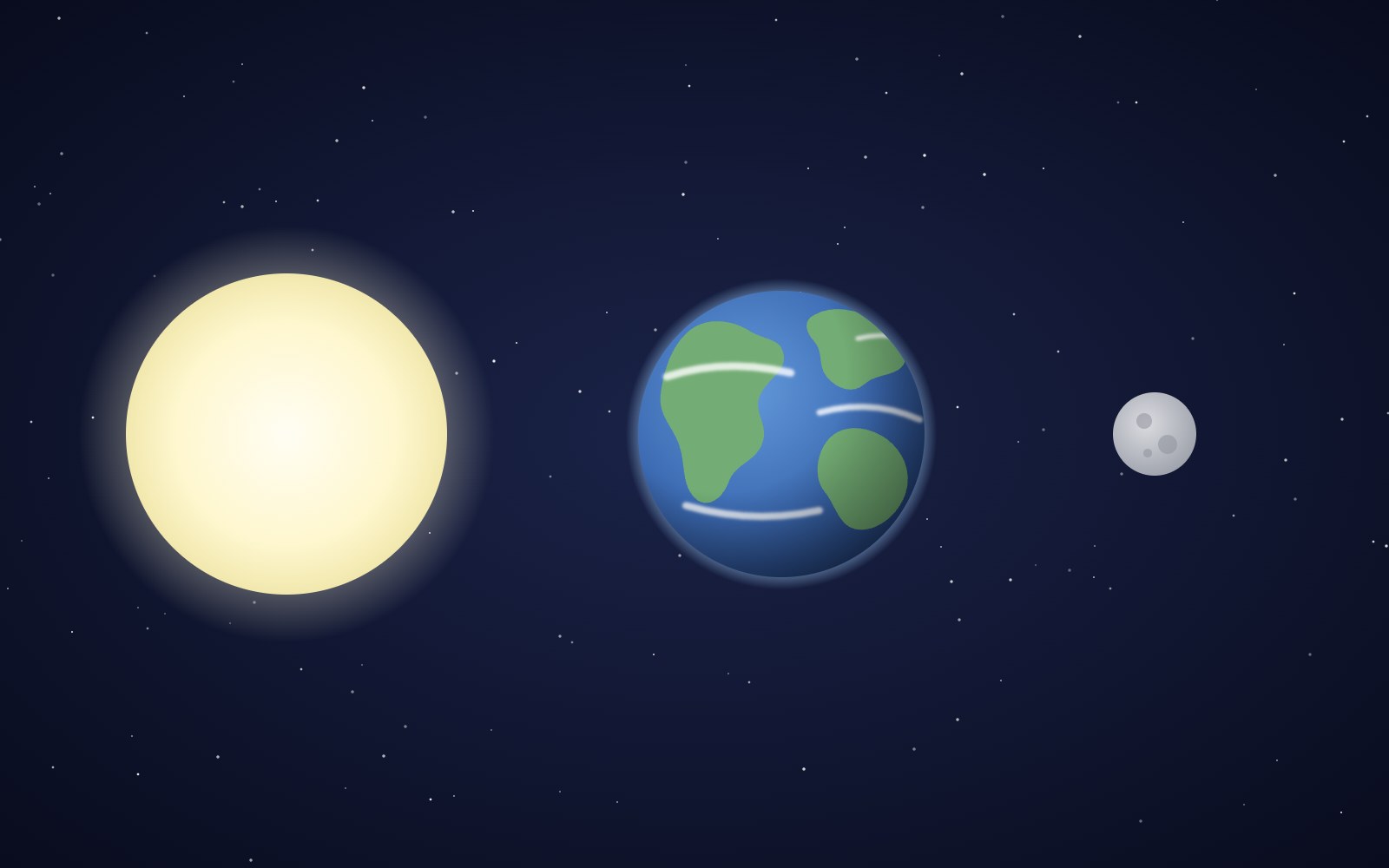
Why the sun and moon look the same size
The sun is about 400 times wider than the moon and also about 400 times farther away, so the two discs look almost the same size in our sky. That match is a coincidence of timing, and it will not last forever.
Bees fly more like drones than planes
A bumblebee stays in the air the way a drone or helicopter does, by moving its wings fast instead of racing forward over a stiff wing.
The earth is, in fact, actually round
You can check that Earth is round from a beach, a campsite or a phone call to a friend in another time zone. People worked it out more than two thousand years ago, and one of them even measured it with shadows.
5 trendy UI effects
A star cursor with a comet tail, frosted glass panels, scroll-driven animation, smooth page transitions and gradients that actually move, plus the one tip we would give for each.

What llms.txt is, and how we added one to our site
A plain-English look at llms.txt, the proposed markdown file that gives AI assistants a short map of your site, what it can and can't promise, and how we wrote and tested our own.
Tell Google who you are with a few lines of code
Small business names collide, and search engines have to guess which one you meant. Organization structured data is one way a site owner can stop them guessing. Here's what it is, what we put in ours, and how to test it.
Building night sky effects that know when to sit out
How the Night Sky UI Kit's star cursor, starfield and aurora check the visitor's device and settings before they draw a single frame.
How you can set up pull requests to get an automatic first review
Give every pull request an automatic first review the moment it opens, and send each new pull request and its review to a dedicated Slack channel. Here is how the pieces fit.
How visitors book a call on our site
Picking a time with us takes a few clicks and never leaves the page. Here is how the booking calendar on our site works, and the small checks that stop two people grabbing the same hour.
Inside our resumable, review-gated video production pipeline
How we built a local seven-step pipeline that turns a history topic into a captioned video, with resumable state, bounded retries, and a human review gate.